BYOD Policy Best Practices: Security Rules for Personal Devices at Work

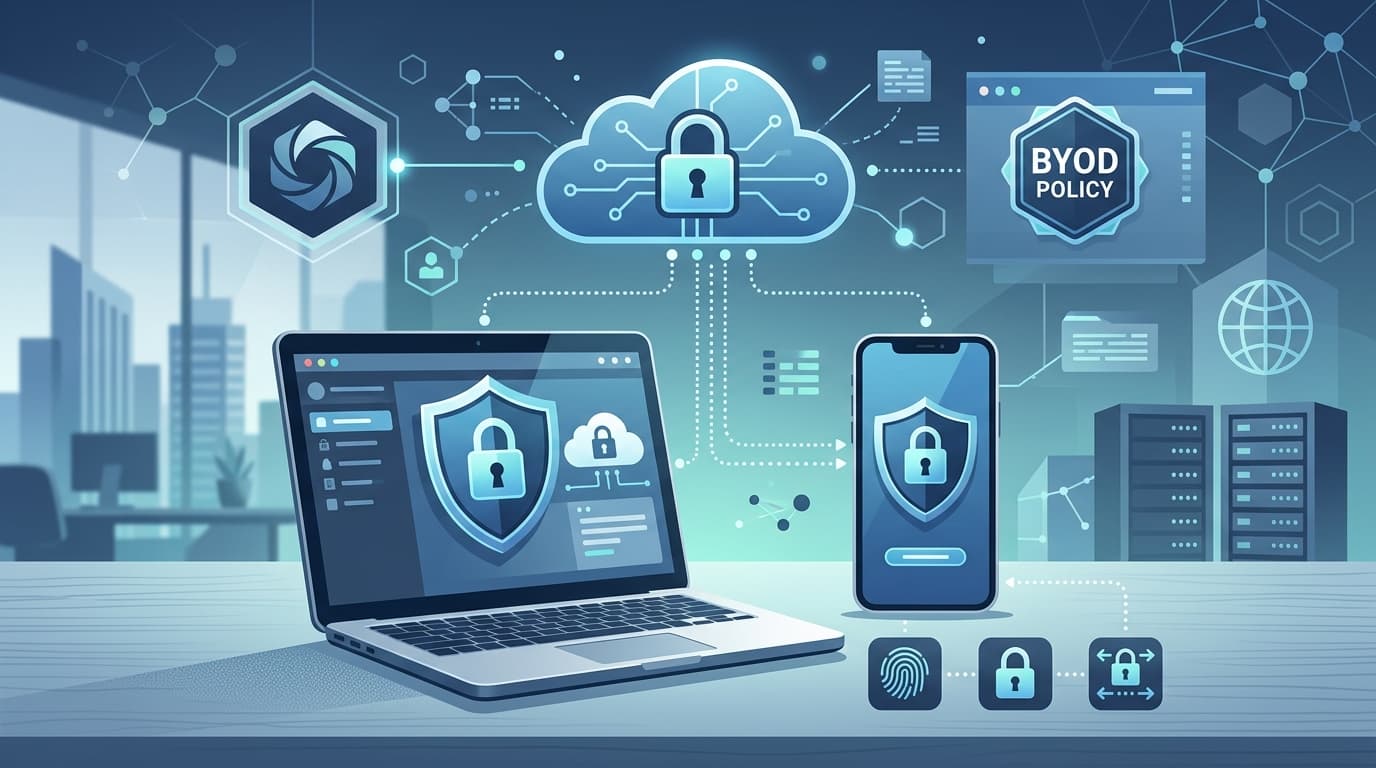
Bring Your Own Device (BYOD) programs are everywhere — 83% of organizations now allow employees to use personal devices for work, according to Samsung's 2024 Mobile Security Report. But here's what doesn't get mentioned in the boardroom pitch: organizations without a formal BYOD policy experience 2x more data breaches originating from mobile endpoints than those with one (Verizon Mobile Security Index, 2024). The device isn't the problem. The lack of rules is.
This guide covers 8 BYOD policy best practices that protect your company's data without turning employees into adversaries. If you need a head start, grab our BYOD policy template and customize it as you read through each section.
Key Takeaways
- A BYOD policy must balance security controls with employee privacy — over-restrict and employees will find workarounds
- 8 essential policy components: enrollment, MDM, encryption, containerization, remote wipe, approved apps, network segmentation, and exit procedures
- 40% of data breaches involve data stored on mobile devices (Verizon DBIR, 2024)
- Enrollment and exit procedures are the most commonly skipped sections — and the most costly to neglect
What Is a BYOD Policy and Why You Can't Skip It
A BYOD policy is a formal document that defines the rules, responsibilities, and security requirements for employees who use personal devices — smartphones, laptops, tablets — to access company systems and data. It sits within your broader IT security policy framework and should be reviewed alongside your remote work security policy.
Without a written policy, you're relying on assumptions. The employee assumes they can install anything they want. IT assumes they can wipe the entire device if it's lost. Legal assumes someone else handled the privacy implications. Those assumptions collide when a phone goes missing at an airport with 6 months of client emails sitting in an unencrypted mail app.
A strong BYOD policy answers five questions:
- Who is eligible to use personal devices for work?
- What devices and operating systems are supported?
- How must devices be configured before accessing company data?
- What happens if a device is lost, stolen, or compromised?
- What happens when an employee leaves the company?
If your policy doesn't answer all five, it's incomplete.
The Real Security Risks of Unmanaged Personal Devices
Before jumping into best practices, it helps to understand what you're defending against. The risks aren't theoretical — 53% of organizations reported a mobile-related security compromise that resulted in data loss or downtime (Verizon Mobile Security Index, 2024).
The most common BYOD security risks include:
- Data leakage through personal apps — an employee copies a client spreadsheet into their personal Google Drive or emails it to their personal account
- Unsecured Wi-Fi connections — working from a coffee shop on an open network while connected to the company VPN (or worse, not connected to the VPN)
- Outdated operating systems — personal devices don't follow corporate patch cycles, leaving known vulnerabilities unpatched for months
- Lost or stolen devices — the average employee's phone contains access to email, Slack, file storage, and often cached credentials for internal systems
- Shadow IT — employees install unapproved apps that sync company data to third-party servers outside your security perimeter
- Device sharing — a spouse or child uses the same tablet that has access to company systems
Each of these risks has a corresponding control. That's what the 8 best practices below address.
Best Practice 1: Establish a Formal Enrollment Process
Every personal device that touches company data needs to go through a documented enrollment process before it's granted access. No exceptions — not for the CEO, not for the contractor who's "only here for two weeks."
Your enrollment process should include:
- Device registration — record the device type, OS version, serial number, and owner
- Minimum requirements check — verify the device meets your baseline (OS version, storage encryption, screen lock enabled)
- MDM agent installation — install your Mobile Device Management software (see Best Practice 2)
- Policy acknowledgment — the employee signs a document confirming they understand the rules, especially around remote wipe and monitoring scope
- Access provisioning — grant access to approved company resources only after all checks pass
The enrollment form should take less than 15 minutes to complete. If it takes longer, employees will skip it and find workarounds — which is worse than not having a policy at all.
Best Practice 2: Deploy Mobile Device Management (MDM)
MDM software is the enforcement mechanism for your BYOD policy. Without it, your policy is just a document that people signed and forgot about.
An MDM solution lets you:
- Enforce password complexity and biometric authentication
- Require device encryption
- Push security updates and patches
- Remotely lock or wipe a lost device
- Separate personal and corporate data (containerization)
- Block access from non-compliant devices
- Monitor compliance without seeing personal content
Popular MDM platforms include Microsoft Intune, VMware Workspace ONE, Jamf (for Apple devices), and Kandji. The right choice depends on your device ecosystem and existing infrastructure.
Important: Be transparent about what MDM can and can't see. Employees worry — reasonably — that MDM means the company is reading their texts and tracking their location. Most modern MDM solutions can't see personal app content, photos, browsing history, or messages. Tell employees exactly what's visible and what isn't. Trust is a two-way street.
Best Practice 3: Require Device Encryption
This one is non-negotiable. Every device that accesses company data must have full-disk encryption enabled. If a device is lost or stolen, encryption is the difference between a security incident and a data breach.
The good news: modern devices make this easy.
- iOS — encryption is enabled by default when a passcode is set
- Android — encryption has been mandatory on new devices since Android 10, but verify it's active on older hardware
- Windows laptops — BitLocker (Pro/Enterprise editions)
- macOS — FileVault
Your MDM solution should verify encryption status at enrollment and continuously thereafter. If encryption is disabled or can't be confirmed, the device should lose access to company resources automatically.
Best Practice 4: Implement Containerization
Containerization creates a separate, encrypted workspace on the employee's personal device where all company data lives. Personal apps and data stay on one side; work apps and data stay on the other. The two don't mix.
This approach solves two problems simultaneously:
- Security — company data can't leak into personal apps, and personal malware can't access corporate files
- Privacy — IT can manage and wipe the work container without touching personal photos, messages, or apps
Solutions like Microsoft Intune's App Protection Policies, Samsung Knox, and BlackBerry UEM all support containerization. The implementation details vary, but the principle is the same: company data stays in a controlled environment that IT can manage independently.
For employees, containerization means they don't have to worry about IT seeing their personal data. For IT, it means a clean separation that simplifies compliance and reduces liability. It's the closest thing to a win-win in the BYOD security space.
Best Practice 5: Define Remote Wipe Procedures
Remote wipe is the most contentious part of any BYOD policy — and the most important to get right. When a device is lost or stolen, you need the ability to remove company data quickly. But wiping an employee's entire phone, including their personal photos and contacts, creates legal and trust problems.
Your policy should specify three scenarios:
| Scenario | Action | Scope |
|---|---|---|
| Device lost or stolen | Remote wipe triggered by IT | Work container only (if containerized) or full wipe (if not) |
| Employee reports device compromised | IT assesses and wipes if necessary | Work container only |
| Employee leaves the company | Scheduled wipe during offboarding | Work container and MDM removal |
Critical: If you're using containerization (Best Practice 4), remote wipe should only affect the work container. If you're not using containerization, a full wipe might be your only option — which is exactly why containerization matters.
Include a response time commitment in your policy. "IT will initiate remote wipe within 4 hours of a reported lost or stolen device" gives employees a clear expectation and gives IT a measurable SLA.
Best Practice 6: Maintain an Approved Application List
Not every app is safe to use with company data. Your BYOD policy should include an approved list of applications for email, messaging, file storage, and collaboration — and explicitly prohibit using personal alternatives for work purposes.
Approved app list example:
| Function | Approved App | Not Approved |
|---|---|---|
| Outlook, Gmail (managed) | Native mail app, Yahoo Mail | |
| File storage | OneDrive, SharePoint | Personal Dropbox, personal Google Drive |
| Messaging | Microsoft Teams, Slack | WhatsApp, iMessage (for work topics) |
| Notes | OneNote, Notion (managed) | Apple Notes, Google Keep |
| Video calls | Teams, Zoom (licensed) | FaceTime, personal Zoom |
The "Not Approved" column is more important than the "Approved" column. Employees default to what's convenient. If you don't explicitly say "don't use WhatsApp for client discussions," they will — and that data sits on servers you don't control, in a jurisdiction you might not prefer.
Review and update this list quarterly. New apps appear constantly, and employees will ask about them.
Best Practice 7: Enforce Network Segmentation
Personal devices shouldn't sit on the same network segment as production servers and sensitive databases. This is basic network hygiene, but it's frequently overlooked in BYOD implementations.
Set up at minimum two network segments:
- Corporate network — for company-owned, fully managed devices and infrastructure
- BYOD/Guest network — for personal devices, with access limited to approved cloud services and VPN endpoints
Personal devices should access company resources through a VPN or zero-trust network access (ZTNA) solution, not through direct network access. This ensures that even if a personal device is compromised, the attacker can't pivot laterally into your internal network.
Your remote work security policy should align with these network segmentation rules, especially for employees who work from home on personal devices connected to home networks.
Best Practice 8: Create Clear Exit Procedures
The offboarding process for BYOD is where most policies fall apart. An employee leaves, and their personal device still has cached emails, downloaded files, saved passwords, and an active MDM profile. Without a formal exit procedure, that data walks out the door.
Your exit checklist should include:
- Wipe the work container / corporate profile
- Remove the MDM agent
- Revoke access to all company cloud services (email, file storage, VPN)
- Disable corporate Wi-Fi certificates
- Confirm the employee has removed any company data from personal cloud storage
- Document the offboarding completion with a timestamp
Timing matters. The exit procedure should happen on or before the employee's last day — not two weeks later when someone in IT remembers. Tie BYOD offboarding to your HR offboarding workflow so it's triggered automatically. If you're using our employee onboarding checklist, create a matching offboarding checklist that includes BYOD device removal.
For a deep dive on building exit procedures into your broader IT policy framework, see our complete guide to IT policy templates.
BYOD Policy Implementation Checklist
Here's a step-by-step sequence for rolling out a BYOD policy at your organization:
- Audit current state — identify how many personal devices are already accessing company data (check your email server logs and cloud app sign-in reports)
- Select MDM solution — evaluate vendors based on your device ecosystem, budget, and compliance requirements
- Draft the policy — use our BYOD policy template as a starting point
- Legal review — have your legal team review privacy implications, especially around remote wipe and monitoring disclosures
- Pilot with IT department — enroll IT team devices first, identify friction points, adjust the process
- Employee communication — explain the policy, emphasize what IT can and can't see, and address privacy concerns upfront
- Phased enrollment — roll out department by department over 4-6 weeks
- Compliance monitoring — use MDM dashboards to track enrollment rates, compliance status, and policy violations
- Quarterly review — update approved app lists, review incidents, and adjust policies based on real-world data
Don't try to do everything at once. A phased rollout with clear communication will generate less resistance than a surprise announcement with a 48-hour compliance deadline.
Common Mistakes to Avoid
After helping organizations build BYOD policies for years, the same mistakes keep showing up:
- Writing the policy but not enforcing it — a policy without MDM enforcement is just a suggestion
- Requiring too many restrictions — if employees can't use their devices normally, they'll stop enrolling them and use shadow IT instead
- Ignoring operating system fragmentation — your policy needs to account for iOS, Android, Windows, and macOS differences
- Skipping the privacy disclosure — employees have a right to know what IT can see on their personal device. Skipping this creates legal exposure and erodes trust
- No incident response plan — when a device is lost at 11 PM on a Friday, who does the employee call? What's the response time? Define this before you need it
Frequently Asked Questions
What should a BYOD policy include at minimum?
At minimum, a BYOD policy should cover: eligible devices and OS versions, enrollment requirements, security standards (encryption, passcode, MDM), acceptable use rules, an approved application list, remote wipe terms, privacy disclosures (what IT can and can't see), and exit procedures. Without these sections, the policy has gaps that will create problems during incidents or employee departures.
Can my company legally wipe my personal phone?
If the employee signed a BYOD agreement that includes remote wipe consent, the company can wipe the device — typically limited to the work container if containerization is in place. Without a signed agreement, the legal standing is murky and varies by jurisdiction. This is why the enrollment process must include a clear, signed acknowledgment of remote wipe terms before any company data touches the device.
How do I handle employees who refuse to install MDM on their personal device?
Offer alternatives. Employees who refuse MDM on personal devices can be issued a company-owned device, given access to web-only versions of corporate apps (no data stored locally), or restricted to desktop-only access. The key principle: no MDM, no company data on the personal device. Frame it as a choice, not a punishment.
Should contractors and temporary workers be included in the BYOD policy?
Yes — and they often present higher risk because their tenure is shorter and their offboarding is less structured. Contractors should follow the same enrollment process, with an accelerated exit procedure tied to their contract end date. Some organizations create a separate contractor tier with more restrictive access (e.g., web-only access to email and documents, no local data storage).
How often should the BYOD policy be updated?
Review the policy at least twice a year. Update it immediately when you change MDM vendors, when a new major OS version is released (iOS and Android release annually), when your security posture changes (e.g., after a breach), or when regulations that affect device management change. The approved application list should be reviewed quarterly since new tools emerge frequently.
What's the difference between BYOD, COPE, and CYOD?
BYOD (Bring Your Own Device) means employees use their personal devices for work. COPE (Corporate-Owned, Personally Enabled) means the company buys the device but allows personal use. CYOD (Choose Your Own Device) means employees pick from a company-approved list, and the company purchases it. BYOD is cheapest for the organization but hardest to secure. COPE gives IT the most control but costs more. CYOD is the middle ground — pick based on your budget, risk tolerance, and workforce expectations.